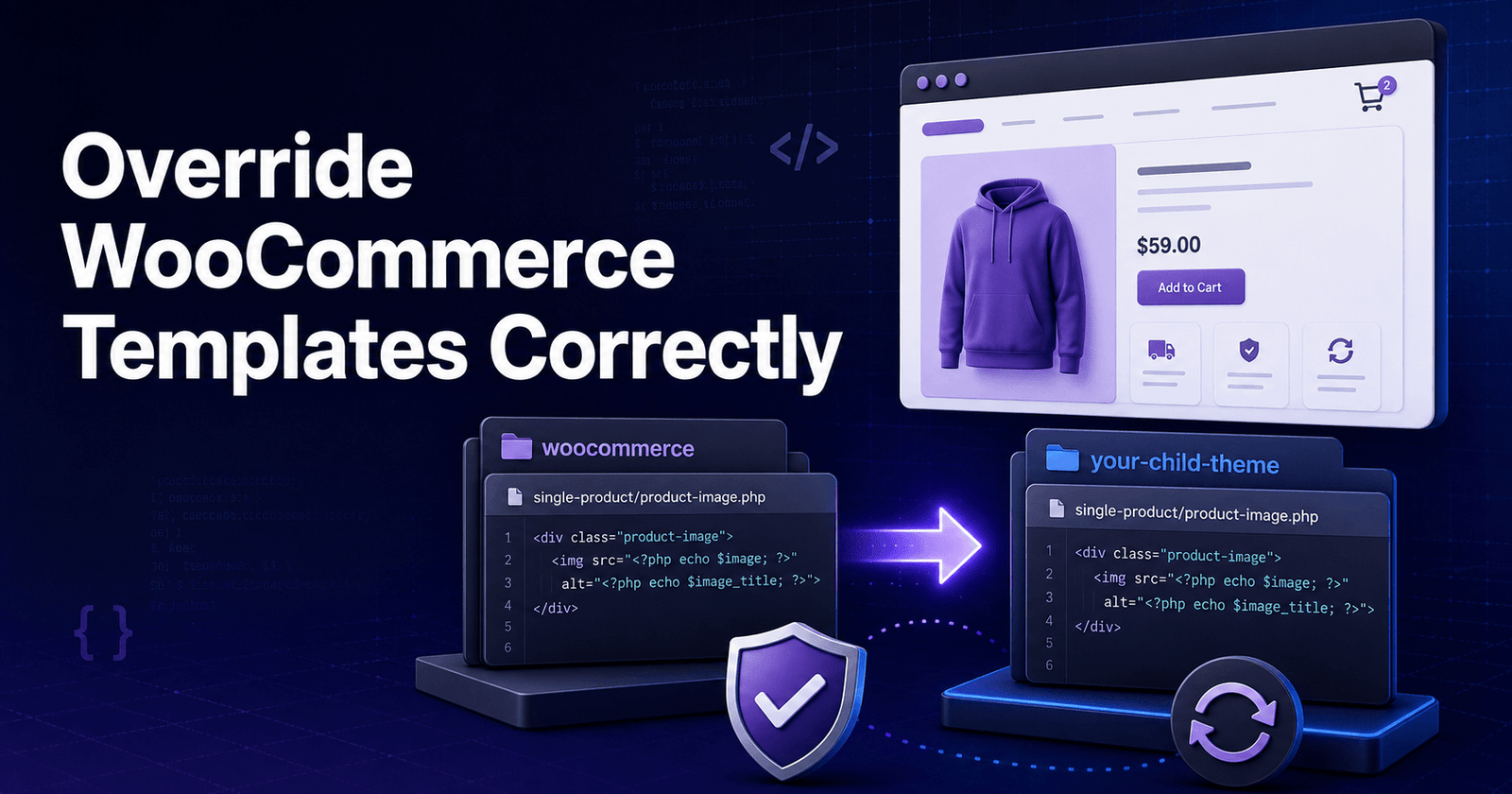
WooCommerce templates control much of the HTML used on shop pages, product pages, the cart, checkout, customer account screens, and transactional emails. Editing one of these templates can be an effective way to customize a store—but editing the wrong file or placing an override in the wrong folder can cause lost changes, outdated-template warnings, or checkout problems.
This guide explains how to override WooCommerce templates correctly, when to use hooks instead, how to work safely with child themes, and how to update an override after WooCommerce changes its core templates.
In this guide
What Is a WooCommerce Template Override?
WooCommerce includes default PHP templates inside the plugin:
wp-content/plugins/woocommerce/templates/These files define the structure of many frontend and email components. For example:
single-product.php
content-single-product.php
cart/cart.php
checkout/form-checkout.php
myaccount/dashboard.php
emails/customer-processing-order.php
A template override is a copy of one of these files placed in your active theme or, preferably, a child theme. WooCommerce loads the copied file instead of the original plugin template.
The basic destination is:
wp-content/themes/your-child-theme/woocommerce/The directory structure below `woocommerce/templates/` must remain the same.
For example:
Plugin source:
wp-content/plugins/woocommerce/templates/checkout/form-checkout.php

Correct override:
wp-content/themes/your-child-theme/woocommerce/checkout/form-checkout.php
Notice that the destination does not include another `templates` directory.
Never Edit WooCommerce Plugin Files Directly
Do not modify files inside:
wp-content/plugins/woocommerce/WordPress replaces the plugin directory when WooCommerce is updated. Any direct changes will normally disappear.
Direct plugin edits also make maintenance difficult because:
- Custom code becomes mixed with third-party code.
- Another developer may not know which files were changed.
- Updates can silently remove the customization.
- Comparing your work with a new WooCommerce release becomes harder.
- A mistake can affect checkout, payments, emails, or customer accounts.
Use a child theme, hooks, or a small custom plugin instead.
Use Hooks Before Copying a Template
Before overriding an entire file, check whether a WooCommerce action or filter can make the required change.
Hooks are usually better for:
- Adding content before or after an existing section
- Removing or reordering standard elements
- Changing button text, labels, or displayed values
- Adding a product badge or custom message
- Modifying checkout fields
- Changing data without replacing markup
A hook changes only the relevant behavior. A template override copies the entire file, so you become responsible for keeping that copy compatible with future WooCommerce versions.
Example: Add a message above the Add to Cart form
Add this to the child theme’s `functions.php` or, for reusable business functionality, a custom plugin:
add_action('woocommerce_before_add_to_cart_form', 'kdpi_product_enquiry_message');

function kdpi_product_enquiry_message()
{
    echo '<p class="product-enquiry-message">'
        . esc_html__('Need help choosing this product? Contact our team.', 'kdpinfusion')
        . '</p>';
}
This does not require copying a ‘single-product/add-to-cart/simple.php' file into your-child-theme.
Example: Remove product meta from the default position
remove_action('woocommerce_single_product_summary', 'woocommerce_template_single_meta', 40);If a hook can achieve the result cleanly, it is normally the safer and easier-to-maintain option.
Classic Themes and Block Themes Are Different
Before copying a PHP file, identify the type of theme your store uses.
Classic theme
A classic theme generally uses PHP templates such as `single.php`, `page.php`, and WooCommerce PHP overrides. For this type of theme, the traditional child-theme `/woocommerce/` override system applies.
Block theme
A block theme uses HTML block templates and the Site Editor. Store templates may be customized through:
Appearance → Editor → TemplatesA block theme can also provide files such as:
templates/single-product.html
templates/archive-product.html
parts/mini-cart.html
parts/checkout-header.html
Copying a classic PHP template may not change a page that is rendered by WooCommerce blocks. Determine what is actually rendering the page before starting the override.
Step 1: Create and Activate a Child Theme
Do not place custom overrides in a third-party parent theme. A parent-theme update may replace them.
A minimal child-theme `style.css` contains a header similar to:
/*
Theme Name: My Store Child
Template: parent-theme-folder
Version: 1.0.0
*/
The `Template` value must match the parent theme’s folder name exactly.
Also create a `functions.php` file if the child theme does not already have one. Do not copy the complete parent-theme `functions.php` into it.
Activate the child theme from:
Appearance → ThemesBefore changing a live store, create a backup and test on a staging site.
Step 2: Find the Correct WooCommerce Template
Browse the templates directory in the installed WooCommerce plugin:
wp-content/plugins/woocommerce/templates/Do not guess the filename based only on what appears in the browser. A product page may use several nested templates and hooks.
Useful examples include:
| Area | Common template |
| Shop product card | `content-product.php` |
| Single product wrapper | `content-single-product.php` |
| Product price | `single-product/price.php` |
| Product meta | `single-product/meta.php` |
| Cart table | `cart/cart.php` |
| Classic checkout form | `checkout/form-checkout.php` |
| Checkout review | `checkout/review-order.php` |
| My Account dashboard | `myaccount/dashboard.php` |
| Processing-order email | `emails/customer-processing-order.php` |
Some layouts are assembled mainly through hooks. For example, copying `content-single-product.php` does not mean all product-page markup exists directly inside that file.
You can search the WooCommerce source for visible text, a CSS class, a hook name, or a call such as `wc_get_template()` to identify the responsible file.
Step 3: Copy the File and Preserve Its Relative Path
Create a `woocommerce` folder in the child theme if it does not exist:
wp-content/themes/your-child-theme/woocommerce/Copy only the template that needs modification.
Product-price example
From:
wp-content/plugins/woocommerce/templates/single-product/price.php

To:
wp-content/themes/your-child-theme/woocommerce/single-product/price.php
Checkout example
From:
wp-content/plugins/woocommerce/templates/checkout/review-order.php

To:
wp-content/themes/your-child-theme/woocommerce/checkout/review-order.php
Email example
From:
wp-content/plugins/woocommerce/templates/emails/customer-processing-order.php

To:
wp-content/themes/your-child-theme/woocommerce/emails/customer-processing-order.php
Wrong paths include:
your-child-theme/templates/checkout/form-checkout.php
your-child-theme/woocommerce/templates/checkout/form-checkout.php
your-child-theme/checkout/form-checkout.php
Step 4: Make the Smallest Possible Change
Keep the original WooCommerce structure wherever possible. Change only the markup required by the design or feature.
Preserve:
- Security checks such as `defined(‘ABSPATH’) || exit;`
- Escaping functions such as `esc_html()`, `esc_attr()`, and `wp_kses_post()`
- Nonces and form fields
- Action and filter calls
- Template variables documented in the file
- The `@version` value in the file header until you merge a newer upstream template
Do not remove a hook merely because it produces no visible output on your current site. Plugins and extensions may attach important content to it later.
Also avoid putting database queries, remote API calls, or large business-logic functions directly in a template. Templates should primarily render prepared data. Put reusable logic in a custom plugin or functions file and call a focused function from the template only when needed.
Step 5: Test More Than the Visible Page
After saving the override, clear relevant caches and test the complete customer flow.
For a product-page change, test:
- Simple products
- Variable products
- Sale and out-of-stock products
- Logged-in and logged-out visitors
- Mobile and desktop layouts
- Add to Cart behavior
- Related extensions such as subscriptions or bookings
For a checkout change, also test:
- Guest checkout
- Account checkout
- Coupons
- Taxes and shipping updates
- Every active payment method
- Order creation and thank-you page
- Validation errors
- JavaScript console and network requests
For email overrides, send actual test orders for the relevant statuses and review both HTML and plain-text emails where applicable.
Do not test critical checkout changes only on production.
How to Confirm WooCommerce Is Loading the Override
Open:
WooCommerce → Status → System StatusScroll to the **Templates** section. WooCommerce lists recognized theme overrides and identifies outdated files.
If the file is not listed or your change does not appear:
- Confirm the child theme is active.
- Check the spelling and capitalization of every directory.
- Remove the extra `templates` directory if you copied it.
- Confirm that the file belongs to WooCommerce core rather than an extension with different override rules.
- Clear WordPress, server, object, CDN, and browser caches.
- Check whether a block template is rendering the page.
- Temporarily add a harmless HTML comment to verify which file is loaded.
- Review PHP logs for syntax or fatal errors.
Why WooCommerce Reports Outdated Templates
WooCommerce can update a core template while the child-theme copy remains unchanged. The override may then show a warning similar to:
version 9.x.x is out of date. The core version is 10.x.xThis does not automatically mean the store is broken. It means the copied template may no longer match the current core structure and must be reviewed.
Ignoring the warning indefinitely can cause:
- Missing fields or buttons
- Incorrect cart or checkout markup
- Extension incompatibility
- PHP warnings or fatal errors
- Emails missing newly introduced information
- Accessibility or security fixes not reaching the override
Changing only the `@version` number hides the warning without updating the code. That is not a real fix.
How to Update an Outdated Override Correctly
Use a controlled three-file comparison:
- Back up the current customized override.
- Obtain the old WooCommerce core template that the override was based on.
- Open the latest core template from the installed WooCommerce version.
- Compare the old core template with your customized override to identify your changes.
- Copy the latest core template into the child theme.
- Reapply only your necessary custom changes to the new file.
- Keep all new hooks, variables, validation, and markup from WooCommerce.
- Test the affected workflow on staging.
- Confirm the warning has disappeared from WooCommerce Status.
The safest principle is: **start with the new WooCommerce template and merge your customization into it**. Do not start with the old override and copy random new lines into it.
Tools such as Git, an IDE comparison view, or `diff` make this process much safer.
Declare WooCommerce Support in a Custom Classic Theme
If you are building your own classic theme, declare WooCommerce support after the theme is set up:
add_action('after_setup_theme', 'kdpi_theme_setup');

function kdpi_theme_setup()
{
    add_theme_support('woocommerce');
}
WooCommerce’s classic-theme guidance says themes using custom template overrides should declare this support.
Should Overrides Live in a Theme or Plugin?
The answer depends on what the customization represents.
Use a child theme when the change is presentation-specific, such as:
- Moving markup to match the active theme
- Changing the HTML structure of a product card
- Adjusting the visual layout of an email
Use a custom plugin when the change is business functionality, such as:
- Quote-request rules
- Role-based pricing
- Order-processing logic
- API integrations
- Custom checkout validation
- Data storage or scheduled processes
A plugin can filter WooCommerce’s template-location process when a plugin-owned custom template is genuinely required. However, this is a more advanced architecture and should not be used to override arbitrary core templates globally without a clear reason.
Common WooCommerce Override Mistakes
Editing the plugin copy
The next update removes the work. Always customize outside the WooCommerce plugin directory.
Editing a parent theme
A parent-theme update can remove the override. Use a child theme.
Copying the entire templates directory
This creates many files that must all be maintained. Copy only what you need.
Using the wrong destination path
Keep the path below WooCommerce’s `templates` directory, but omit the word `templates` in the child-theme destination.
Overriding when a hook would work
An unnecessary full-file copy creates future maintenance for a small change.
Removing hooks from copied files
Payment gateways, product add-ons, subscriptions, and other extensions may depend on them.
Updating only the `@version` header
This conceals the warning while leaving old code in place.
Mixing logic with markup
Complex logic in templates is harder to test and reuse. Keep templates focused on output.
Forgetting block-based checkout
The Cart and Checkout blocks do not work like classic shortcode templates. A PHP override such as `checkout/form-checkout.php` may have no effect on a block checkout page.
Testing only one product type
A modification that works for a simple product may fail for variable, grouped, external, subscription, or bookable products.
A Practical Maintenance Checklist
Before releasing an override:
- Use an active child theme.
- Back up the site and work on staging.
- Confirm whether the page uses classic PHP or blocks.
- Look for an action or filter first.
- Copy only the required template.
- Preserve the relative directory structure.
- Keep security checks, escaping, hooks, and template variables.
- Make the smallest possible code change.
- Test all relevant product, cart, checkout, account, and email states.
- Review PHP, browser-console, WooCommerce, and payment logs.
- Check the Templates section under WooCommerce Status.
- Track the override in Git.
- Review overrides after every WooCommerce update.
WooCommerce Development Support
Need Help With WooCommerce Template Customization?
An incorrect override can cause much more than a visual issue. It can hide payment methods, prevent checkout updates, break product variations, remove email content, or become incompatible after a WooCommerce release.
KDP Infusion can help with:
- WooCommerce child-theme customization
- Product, cart, checkout, and My Account templates
- Transactional email customization
- Outdated-template fixes
- Hook-based customization
- Plugin and theme conflict debugging
- Checkout and payment troubleshooting
- Custom WooCommerce plugin development
Conclusion
The correct way to override a WooCommerce PHP template is to copy only the required file from the plugin’s `templates` directory into the active child theme’s `/woocommerce/` directory while preserving its relative path.
But a template override should not be the first solution to every customization. Use hooks when possible, distinguish classic templates from block templates, keep overrides small, and review them whenever WooCommerce updates.
The goal is not merely to make a customization work today. It is to make it understandable, testable, and maintainable across future WooCommerce releases.
Frequently Asked Questions
WooCommerce core PHP templates are normally in `wp-content/plugins/woocommerce/templates/`. Do not edit them directly.
Place it under `wp-content/themes/your-child-theme/woocommerce/` and preserve the file's relative path below the plugin's `templates` directory.
Common causes include an inactive child theme, an incorrect directory path, an extra `templates` folder, caching, copying a template from a different extension, or trying to override a page rendered by blocks.
A child theme is strongly recommended when the active parent theme receives updates. Otherwise, a theme update may remove your changes.
Use hooks when they can make the required change cleanly. Override a template when you genuinely need to change its HTML structure or when no suitable hook exists.
Start with the latest core template, identify the custom changes in the old override, and carefully reapply those changes to the new file. Test the complete affected workflow afterward.
No. Editing only the `@version` value hides the warning but does not merge WooCommerce's code changes.
Yes. Core email templates can be copied from `woocommerce/templates/emails/` to `your-child-theme/woocommerce/emails/`, preserving any subdirectories. Test all affected order statuses and email formats.
Your Checkout page may use the Checkout block rather than the classic checkout shortcode. Block checkout customization uses block extensibility rather than the classic PHP template in many cases.
Open **WooCommerce → Status → System Status** and scroll to the Templates section.