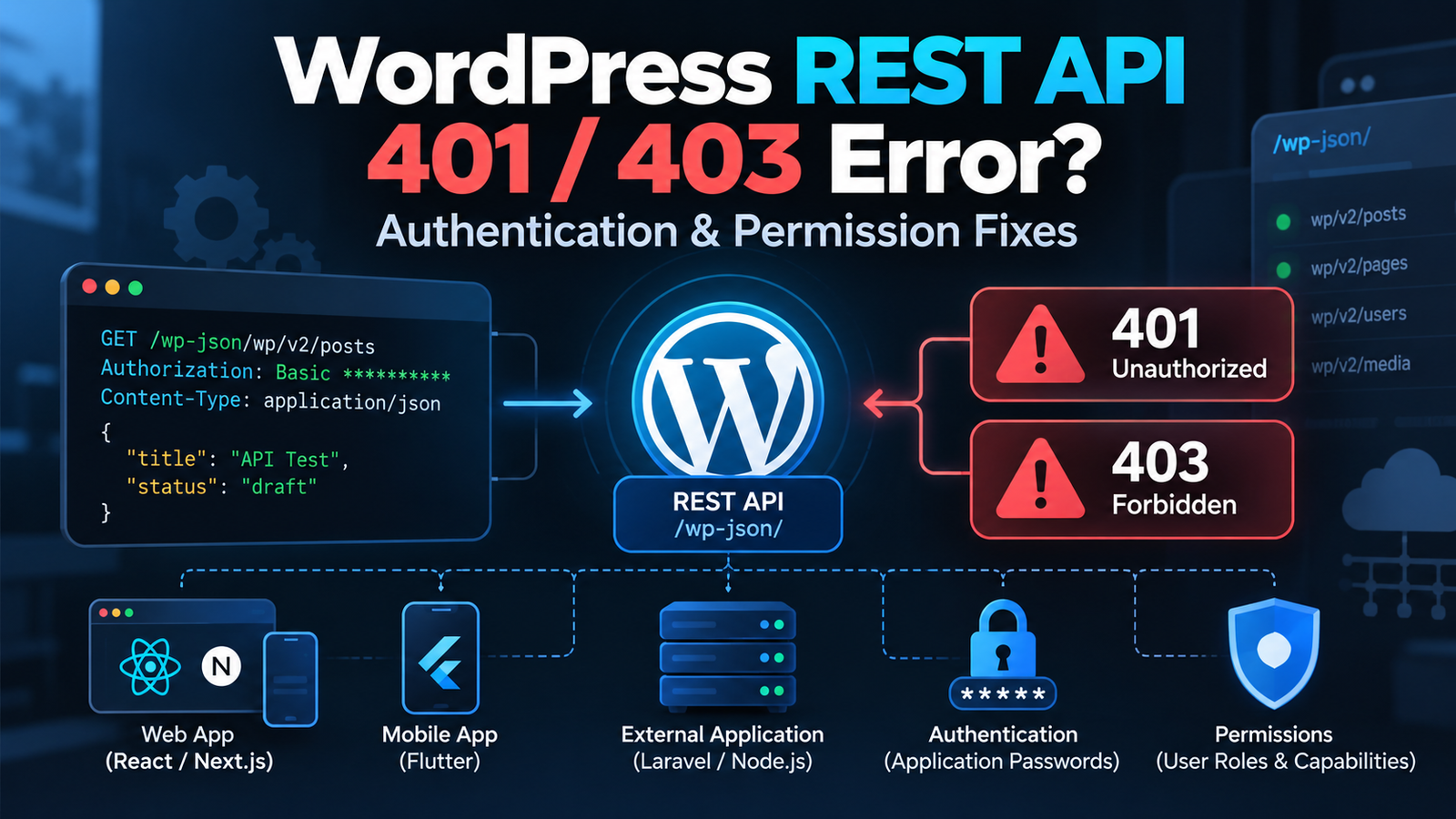
The WordPress REST API makes it possible to connect WordPress with mobile apps, React or Next.js frontends, Laravel applications, CRMs, automation systems, WooCommerce integrations, and other external services.
A typical API request may work perfectly while you are logged into WordPress, but the same request from your application returns:
401 Unauthorizedor:
403 ForbiddenSometimes public GET requests work while creating or updating content fails. In other cases, the API works on localhost but stops after moving the website to production.
These errors are often described simply as “authentication problems,” but authentication is only one possible cause. WordPress permissions, application passwords, REST nonces, security plugins, web-server rules, Cloudflare or another proxy, incorrect endpoints, and custom REST API code can all produce similar symptoms.
This guide explains how to diagnose WordPress REST API 401 and 403 errors systematically instead of weakening site security until the request happens to work.
What Do WordPress REST API 401 and 403 Errors Mean?
A 401 response generally means the request has not been successfully authenticated for the requested operation.
A 403 generally means the server understood the request but will not allow it.
In a real WordPress installation, however, the exact response body is often more useful than the status code alone.
For example:
{
  "code": "rest_cannot_create",
  "message": "Sorry, you are not allowed to create posts as this user.",
  "data": {
    "status": 401
  }
}
Compare that with:
{
  "code": "rest_forbidden",
  "message": "Sorry, you are not allowed to do that.",
  "data": {
    "status": 403
  }
}
Or you may receive an HTML response generated by a firewall instead of WordPress JSON.
That difference is important.
Your troubleshooting flow should therefore start with:
API request
     ↓
HTTP status
     ↓
Response body
     ↓
Did WordPress generate it?
     ↓
Authentication / permission / server / security layer
Do not diagnose an API failure from the HTTP status alone.
Confirm That the WordPress REST API Is Available
Before troubleshooting authentication, confirm that REST itself is reachable.
Open:
https://example.com/wp-json/A working WordPress installation should normally return REST API information rather than a standard website page or server error.
You can also test:
https://example.com/wp-json/wp/v2/postsA public posts request should normally return accessible published posts.
Using curl:
curl -i https://example.com/wp-json/wp/v2/postsIf even public endpoints fail, your problem probably occurs before authenticated API logic.
Investigate:
- Permalinks
- WordPress configuration
- Web-server rewrite rules
- Security plugins
- Hosting firewall
- Reverse proxy
- CDN/WAF configuration
- Custom code disabling REST access
Authentication changes will not fix an API that is unavailable at the routing or server level.
Check the Exact REST API Endpoint
Small URL mistakes are common.
The WordPress posts endpoint is:
/wp-json/wp/v2/postsA custom plugin may register:
/wp-json/kdpi/v1/itemsWooCommerce uses its own REST namespaces for relevant APIs.
Do not assume all WordPress-related APIs share the same authentication or permission behavior.
First test the exact endpoint that your application needs.
For example:
curl -i https://example.com/wp-json/wp/v2/users/meAn endpoint such as /users/me is useful during authentication testing because it helps determine which WordPress user, if any, the request represents.
Understand Authentication and Authorization Separately
These two concepts are often mixed together.
Authentication answers:
Who is making this request?
Authorization answers:
Is that user allowed to perform this operation?
A request can therefore be successfully authenticated and still receive a permission error.
For example:
Request
   ↓
Authentication succeeds
   ↓
WordPress identifies Subscriber
   ↓
Request tries to publish a post
   ↓
Capability check fails
   ↓
Request rejected
Changing credentials will not solve a role/capability problem if WordPress already knows who the user is.
Determine both:
- Which user is WordPress authenticating?
- Does that user have the required capability?
Use the Right Authentication Method
The correct authentication method depends on where the request originates.
Common scenarios include:
WordPress admin JavaScript
        ↓
Cookie + REST nonce

External application
        ↓
Application Password / suitable auth mechanism

Custom integration
        ↓
Purpose-built authenticated endpoint

Public frontend
        ↓
Public REST endpoint where appropriate
Avoid creating one authentication mechanism and using it everywhere without considering the security boundary.
Using WordPress Application Passwords
For server-to-server or external REST API integrations, WordPress Application Passwords can be useful.
An Application Password belongs to a specific WordPress user and can be revoked independently from the user’s normal login password.
After creating one for the integration, a request can use HTTP Basic Authentication over HTTPS.
For example:
curl --user "api-user:APPLICATION_PASSWORD" \
  https://example.com/wp-json/wp/v2/users/me
Do not use the literal placeholder above. Supply the actual integration credentials securely.
A successful response should identify the authenticated WordPress user.
Then test the required operation.
For example, creating a draft post might conceptually use:
curl --user "api-user:APPLICATION_PASSWORD" \
  -X POST \
  -H "Content-Type: application/json" \
  -d '{"title":"API Test","status":"draft"}' \
  https://example.com/wp-json/wp/v2/posts
If /users/me works but post creation does not, investigate permissions rather than assuming authentication failed.
Don’t Put WordPress Credentials in Browser JavaScript
Suppose you are building a React or Next.js frontend.
This is dangerous:
const username = 'api-user';
const applicationPassword = 'secret-password';

// Browser sends WordPress credentials directly.
Anything shipped to browser JavaScript should be considered visible to the user.
A safer architecture for privileged operations is usually:
Browser
   ↓
Your backend / server-side endpoint
   ↓
Secure credentials
   ↓
WordPress REST API
For example:
Next.js browser UI
       ↓
Next.js server route
       ↓
WordPress REST API
or:
Flutter app
     ↓
Your authenticated backend
     ↓
WordPress
The exact architecture depends on what the application needs to do, but WordPress administrator credentials should not be embedded in a public mobile or JavaScript application.
Check Whether the Authorization Header Reaches WordPress
This is one of the most frustrating REST API problems.
Your client sends:
Authorization: Basic ...but WordPress behaves as though no credentials were provided.
The header may have been removed somewhere between the client and PHP.
Conceptually:
Client
  ↓
Authorization header
  ↓
CDN / Proxy
  ↓
Web Server
  ↓
PHP
  ↓
WordPress
If any layer removes or fails to forward the header, WordPress cannot authenticate the request correctly.
This can happen because of:
- Apache configuration
- Nginx configuration
- FastCGI configuration
- Hosting security rules
- Reverse proxies
- CDN configuration
- Custom server setup
If authentication works on one hosting environment but not another using exactly the same request, investigate the server/proxy path.
Do not immediately rewrite your WordPress authentication code.
Check WordPress User Roles and Capabilities
Suppose authentication succeeds as:
User: api-client
Role: Subscriber
and you try:
POST /wp-json/wp/v2/postsThe user may simply lack permission.
WordPress permissions are capability-based.
Depending on the operation, relevant capabilities might include abilities to:
- Edit posts
- Publish posts
- Upload files
- Edit other users’ posts
- Manage options
- Manage WooCommerce data
Use the minimum permissions necessary for the integration.
Do not solve every REST permission error by making the integration user an Administrator.
That creates unnecessary risk.
Check Custom REST API permission_callback
When developing custom WordPress REST endpoints, every privileged route should have intentional permission logic.
For example:
add_action( 'rest_api_init', function () {

    register_rest_route(
        'kdpi/v1',
        '/settings',
        [
            'methods'  => 'POST',
            'callback' => 'kdpi_update_settings',
            'permission_callback' => function () {
                return current_user_can( 'manage_options' );
            },
        ]
    );

} );
This endpoint intentionally requires the current user to have the manage_options capability.
A request authenticated as a Subscriber should fail.
That is expected behavior—not an API bug.
Avoid this for sensitive endpoints:
'permission_callback' => '__return_true'unless the route is genuinely intended to be public.
Changing a permission callback to __return_true just to eliminate a 401/403 can turn a debugging problem into a security vulnerability.
Return Proper Permission Errors in Custom APIs
Custom APIs should return useful errors.
For example:
function kdpi_update_settings( WP_REST_Request $request ) {

    if ( ! current_user_can( 'manage_options' ) ) {
        return new WP_Error(
            'kdpi_forbidden',
            'You do not have permission to update these settings.',
            [ 'status' => 403 ]
        );
    }

    // Process validated request.
}
Clear errors help both developers and API consumers understand whether a request failed because of:
- Authentication
- Authorization
- Validation
- Business rules
- Server errors
Avoid returning 200 OK with:
{
  "success": false,
  "message": "Unauthorized"
}
for genuine authentication/authorization failures unless an existing API contract specifically requires that structure.
Use meaningful HTTP status codes.
REST Nonce Errors in Logged-In WordPress Requests
WordPress JavaScript running inside an authenticated WordPress session commonly uses a REST nonce.
A request may include:
X-WP-NonceIf the nonce is missing or invalid, the request can fail even though the browser has WordPress authentication cookies.
A WordPress-generated script may receive a nonce such as:
wp_localize_script(
    'my-script',
    'MyApi',
    [
        'root'  => esc_url_raw( rest_url() ),
        'nonce' => wp_create_nonce( 'wp_rest' ),
    ]
);
Then JavaScript can send it:
fetch(MyApi.root + 'kdpi/v1/example', {
    method: 'POST',
    headers: {
        'Content-Type': 'application/json',
        'X-WP-Nonce': MyApi.nonce
    },
    body: JSON.stringify({
        example: true
    })
});
This pattern is for the appropriate logged-in WordPress context.
A REST nonce is not a permanent external API credential.
Do not copy a nonce from your browser and hardcode it into a mobile application.
Check Whether the User Is Actually Logged In
A browser displaying the WordPress admin does not automatically mean every external API request is authenticated.
Cookies have rules involving:
- Domain
- Subdomain
- HTTPS
- SameSite behavior
- Browser context
For example:
WordPress:
https://www.example.com

Frontend:
https://app.example.com
Cross-origin authentication requires deliberate architecture.
Do not assume WordPress login cookies will automatically authenticate requests from another origin.
Understand CORS Versus 401/403 Errors
CORS is frequently blamed for every frontend API failure.
They are not the same problem.
A server may return:
401 Unauthorizedcorrectly, while the browser also prevents your JavaScript from accessing the response because of CORS.
Or a preflight OPTIONS request may fail before the intended request is sent.
When debugging browser integrations, inspect the Network tab and distinguish:
Authentication failure
Permission failure
CORS failure
Preflight failure
Network failure
Do not install a plugin that allows * origins just because the browser console mentions CORS.
For authenticated APIs, permissive CORS configuration can be dangerous.
Test the API Outside the Browser
If your React, Next.js, or other frontend reports a REST API problem, test the same request using curl or an API client.
For example:
curl -i https://example.com/wp-json/wp/v2/postsThen test authenticated access separately.
If the request works outside the browser but fails from browser JavaScript, investigate:
- CORS
- Cookies
- Browser credentials
- Frontend headers
- Preflight requests
If it fails everywhere, investigate WordPress, credentials, permissions, or the server.
This simple separation can save a lot of debugging time.
Check Security Plugins
Security plugins may intentionally restrict REST API access.
Features can include:
- Disable REST API
- Restrict unauthenticated endpoints
- Block suspicious API requests
- Rate limiting
- Login protection
- IP blocking
- Firewall rules
If the API suddenly stopped after installing or configuring a security plugin, test the relevant rules in a safe environment.
Do not permanently disable security just to make the API work.
Instead, identify the specific rule and determine whether a narrow exception is appropriate.
Check Cloudflare, WAF, and Hosting Firewalls
Sometimes WordPress never receives the failing request.
A Web Application Firewall may return:
403 Forbiddenbefore PHP executes.
Clues include:
- HTML response instead of WordPress JSON
- Firewall-specific headers
- Request blocked only from certain IPs
GETworks butPOSTis blocked- Certain JSON payloads trigger the problem
- API works after bypassing the proxy in a controlled test
The request path may be:
Mobile App
    ↓
Cloudflare / WAF
    ↓
Hosting Firewall
    ↓
Web Server
    ↓
WordPress
A 403 from the first layer requires a different fix from a 403 generated by a WordPress capability check.
Identify who produced the response before changing WordPress code.
Check ModSecurity Rules
Some hosting environments use ModSecurity or similar web application firewall rules.
A legitimate REST request may occasionally match a security rule because of:
- Request body content
- SQL-like text
- HTML
- URLs
- Certain parameter names
- Large payloads
If one API payload works while another consistently receives a server-generated 403, review hosting/WAF logs where available.
Do not simply disable the firewall for the entire website.
A hosting provider may be able to identify the specific triggered rule.
Check Permalinks and Rewrite Rules
REST API routes depend on WordPress routing.
If:
/wp-json/does not behave correctly, try resaving:
WordPress Admin → Settings → Permalinks → Save Changes
This refreshes WordPress rewrite rules.
Also inspect custom .htaccess or Nginx configuration if the problem started after server changes.
Avoid repeatedly editing .htaccess without keeping a backup of the working configuration.
Check HTTP Versus HTTPS
Authenticated API traffic should use HTTPS.
Make sure the application is not calling:
http://example.com/wp-json/...when the site expects:
https://example.com/wp-json/...Redirects can complicate authentication.
For example:
API request with Authorization
          ↓
HTTP URL
          ↓
301 redirect
          ↓
HTTPS URL
Depending on the client and redirect behavior, authentication headers may not behave as expected across redirects.
Use the final canonical HTTPS API URL directly.
Check Domain and www Redirects
The same issue can occur with:
example.comversus:
www.example.comSuppose the application requests:
https://example.com/wp-json/wp/v2/postsbut WordPress redirects to:
https://www.example.com/wp-json/wp/v2/postsRemove unnecessary redirects from the API flow by configuring the application with the canonical WordPress URL.
Check Custom Code That Restricts the REST API
WordPress sites sometimes contain old snippets intended to “disable REST API for security.”
Search custom plugins, must-use plugins, and theme code for filters involving REST authentication.
For example, custom code may use:
add_filter( 'rest_authentication_errors', function ( $result ) {

    // Custom restrictions.

    return $result;
} );
A poorly implemented restriction can block:
- Mobile applications
- Gutenberg/editor features
- WooCommerce functionality
- External integrations
- Custom API endpoints
If the REST API is required, review such code carefully rather than globally disabling WordPress REST functionality.
Check Plugin Conflicts
Plugins can modify:
- Authentication
- User capabilities
- REST availability
- CORS headers
- Security rules
- Custom post-type permissions
If the API stopped working after a plugin change, perform controlled conflict testing on staging.
Do not disable all plugins on a live WooCommerce or business site without understanding the impact.
Start with plugins most likely to affect:
- Security
- Authentication
- Membership
- User roles
- REST API
- Caching
- Headless functionality
Check Custom Post Type REST Permissions
Suppose you register a custom post type:
register_post_type(
    'project',
    [
        'public'       => true,
        'show_in_rest' => true
    ]
);
The REST API can expose the post type, but create/update/delete permissions still depend on its capabilities and the authenticated user.
For advanced implementations, review:
capability_typecapabilitiesmap_meta_cap- User roles
- REST controller behavior
If GET works but POST returns a permission error, that can be a capability issue rather than a routing issue.
Check WooCommerce REST API Permissions Separately
WooCommerce integrations introduce another permission layer.
An integration might need access to:
Products
Orders
Customers
Coupons
Inventory
WooCommerce API credentials can have access settings such as read or read/write.
If reading works but creating or updating fails, verify the credential permissions.
Conceptually:
Read credential
      ↓
GET products ✓
POST product ✕
Do not replace a read-only key with an unnecessarily broad key unless the integration genuinely needs write access.
For custom WooCommerce integrations, also check WordPress user capabilities and any additional business rules implemented by extensions.
Check API Requests From Flutter or Mobile Apps
Mobile integrations require special security consideration.
Avoid putting powerful permanent WordPress credentials directly into a distributed Flutter application.
An APK can be inspected.
A safer architecture for many business applications is:
Flutter App
     ↓
Application API
     ↓
Authorization / Business Rules
     ↓
WordPress / WooCommerce
For example, if customers need to view their own orders, build an authentication flow designed for customers rather than distributing administrator-level WooCommerce API credentials inside the app.
The correct architecture depends on whether the mobile user is:
- Customer
- Staff
- Administrator
- Anonymous visitor
Do not use one credential model for all four.
Check API Requests From Next.js
Next.js can provide a useful server-side layer between the browser and WordPress.
Instead of:
Browser
   ↓
WordPress + secret credential
use:
Browser
   ↓
Next.js server
   ↓
WordPress
Server-side Next.js code can keep appropriate credentials outside the browser.
It can also:
- Validate application users
- Transform WordPress responses
- Apply business rules
- Handle caching
- Restrict which operations are exposed
This is particularly useful for headless WordPress applications requiring both public content and privileged operations.
Check API Requests From Laravel
WordPress can also act as one part of a Laravel-based system.
For example:
WordPress / WooCommerce
          ↕
       REST API
          ↕
       Laravel
          ↓
Business application
If Laravel receives 401 or 403, log safe diagnostic information:
- Endpoint
- HTTP method
- Response status
- WordPress error code
- WordPress error message
Do not log passwords or Authorization headers.
This makes production troubleshooting considerably safer.
Add Useful Logging to Custom REST Endpoints
Custom API development should provide enough information to diagnose failures without exposing sensitive information.
During development, useful information might include:
Route requested
Authenticated user ID
Required capability
Validation result
Business-rule result
Avoid logging:
Passwords
Application passwords
Authorization headers
Payment credentials
Personal information unnecessarily
Good logs answer:
Why did the request fail?
without creating a new security problem.
WordPress REST API 401/403 Troubleshooting Checklist
Use this sequence when an API request returns 401 or 403:
- Test
/wp-json/. - Test a public REST endpoint.
- Confirm the exact failing endpoint.
- Confirm the HTTP method:
GET,POST,PUT,PATCH, orDELETE. - Inspect the complete response body.
- Determine whether the response is JSON or a firewall/server HTML page.
- Test the request using
curlor an API client. - Verify the authentication method.
- Test which WordPress user is authenticated.
- Verify that user’s role and capabilities.
- Check Application Password configuration if used.
- Check whether the Authorization header reaches PHP/WordPress.
- Verify REST nonce handling for logged-in WordPress JavaScript.
- Check custom
permission_callbacklogic. - Check security-plugin restrictions.
- Check Cloudflare/WAF/hosting firewall rules.
- Check ModSecurity logs if applicable.
- Verify HTTPS and the canonical domain.
- Remove unnecessary HTTP or
wwwredirects from the API request. - Check permalink/rewrite configuration.
- Review custom REST authentication filters.
- Test likely plugin conflicts on staging.
- Review custom-post-type capabilities.
- Check WooCommerce API read/write permissions where applicable.
- Review CORS separately from authentication.
- Retest using the minimum permissions required.
Change one layer at a time so you know which change actually resolves the problem.
Best Practices to Prevent REST API Authentication Problems
Use HTTPS Everywhere
Never send API credentials over plain HTTP in production.
Use the canonical HTTPS API endpoint directly.
Give Integrations Minimum Permissions
An integration that only reads posts should not have administrative access.
Follow the principle:
Integration requirement
        ↓
Minimum necessary capability
        ↓
Dedicated credentials
Use Dedicated Integration Accounts
For important server-to-server integrations, a dedicated WordPress account can make access easier to control and revoke.
Avoid tying critical integrations unnecessarily to an employee’s everyday administrator account.
Keep Secrets Outside Frontend Code
Never embed powerful WordPress, WooCommerce, database, or payment credentials in:
- React browser bundles
- Next.js client components
- Flutter application assets
- Public Git repositories
Use an appropriate backend/server layer.
Keep Permission Checks in Custom Endpoints
Every custom endpoint should explicitly define who is allowed to use it.
Do not use public permission callbacks merely to silence REST errors.
Return Useful Errors
Distinguish authentication, permission, validation, and server failures.
This makes integrations easier to maintain and considerably easier to troubleshoot.
Test After Security or Hosting Changes
After changing:
- Security plugins
- CDN/WAF
- Hosting
- SSL
- Domain
- Server configuration
test important REST integrations.
The WordPress website loading successfully does not prove that external API authentication still works.
Document Integrations
Maintain internal documentation containing:
Integration name
API namespace
Required HTTP methods
Required permissions
Credential owner/purpose
Environment
Webhook endpoints
Do not put actual secrets in the documentation.
When Should You Get WordPress API Development Help?
Developer help becomes useful when:
- Authorization headers disappear before reaching WordPress
- A custom endpoint has complex capability requirements
- REST works locally but fails on production hosting
- Security rules block legitimate API traffic
- WordPress needs to connect with Flutter, React, Next.js, or Laravel
- WooCommerce orders/products need two-way synchronization
- Existing API authentication is insecure
- Custom post-type permissions are incorrect
- A production integration intermittently receives 401/403 responses
- You need a secure custom WordPress REST API rather than exposing administrator credentials
For business integrations, the goal should not simply be “make the 403 disappear.”
The goal is to make the required operation work while preserving the correct authentication and authorization boundary.
Need WordPress Help?
Need Help With Your WordPress Website?
KDP Infusion can help troubleshoot WordPress problems, improve performance and build custom solutions for your website.
- WordPress error troubleshooting
- Custom plugin development
- Theme customization
- Speed and Core Web Vitals optimization
- WordPress maintenance and security fixes
Final Thoughts
A WordPress REST API 401 or 403 should not be fixed by randomly disabling security.
Trace the request through each layer:
Application
    ↓
Authentication
    ↓
CDN / WAF
    ↓
Web Server
    ↓
WordPress
    ↓
REST Route
    ↓
Permission Callback
    ↓
User Capability
    ↓
Business Logic
First establish whether WordPress receives the request.
Then determine which user WordPress recognizes.
Then verify whether that user is actually allowed to perform the requested operation.
This approach is safer and usually faster than changing authentication plugins, CORS settings, .htaccess, and user roles simultaneously.
For integrations involving WordPress, WooCommerce, Flutter, Next.js, React, Laravel, or external business systems, authentication should also be designed as part of the architecture—not added as an afterthought once the API is already in production.
If your WordPress REST API integration is returning 401/403 errors, requires a secure custom endpoint, or needs to connect WordPress with another application, KDP Infusion can help diagnose and develop the integration.
Frequently Asked Questions
Common causes include missing or invalid authentication, an Authorization header not reaching WordPress, expired/invalid REST nonce handling, or attempting an operation that requires an authenticated user. Inspect the WordPress error code and response body for the exact cause.
A 403 can come from WordPress permissions, custom REST rules, a security plugin, hosting firewall, WAF, or web-server configuration. First determine which layer generated the response.
Published posts can normally be publicly readable, while creating posts requires authentication and sufficient capabilities. Verify both the authenticated user and that user's permissions.
If the same request works outside the browser, investigate browser-specific issues such as CORS, preflight requests, cookies, credentials, and whether you're attempting to expose server-only authentication from frontend code.
Application Passwords can be appropriate for certain external/server-to-server REST integrations. Use HTTPS, protect the credential, assign appropriate permissions, and revoke the password when it is no longer needed.
No privileged permanent credential should be embedded in browser JavaScript. Use an appropriate server-side layer for operations requiring protected WordPress credentials.
Avoid distributing powerful permanent WordPress or WooCommerce credentials inside a mobile application. Mobile apps can be inspected, so design an authentication/API layer appropriate for the app's users.
The production server, proxy, WAF, security plugin, or hosting configuration may handle Authorization headers or REST requests differently. Compare the complete request path rather than assuming the WordPress code changed.
A WAF or proxy can block a request before WordPress receives it. Inspect the response and relevant firewall logs to determine whether the 403 comes from WordPress or an upstream layer.
Not as a permanent solution. Controlled testing can help identify whether a security rule is involved, but the correct fix is to configure the specific rule or integration safely.
Only for endpoints that are genuinely intended to be public. Using it on a sensitive route just to fix a permission error can expose functionality to unauthenticated users.
Use an appropriate authenticated endpoint such as the current-user REST endpoint and inspect the response. Then test the required operation separately so authentication and authorization can be diagnosed independently.