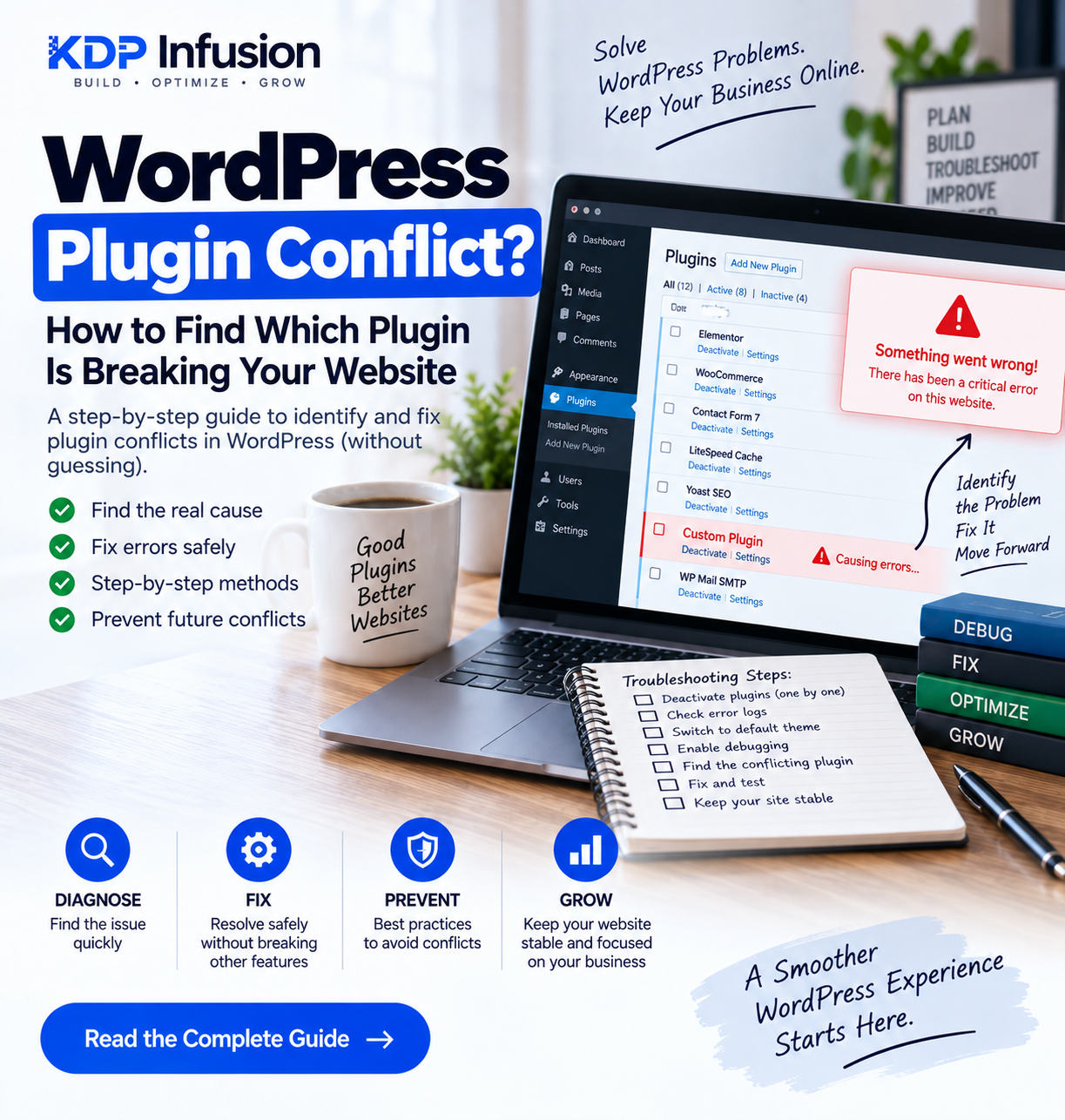
Your WordPress website was working perfectly yesterday.
Then you updated a plugin, installed something new, or changed a setting — and suddenly something stopped working.
Maybe your website shows a critical error.
Maybe the checkout page is broken.
Maybe Elementor won’t load.
Or perhaps the website still looks normal, but a contact form, payment gateway, login, popup or another feature has quietly stopped working.
A WordPress plugin conflict is often one of the first things worth investigating.
The difficult part isn’t always fixing the problem.
It’s finding which plugin is actually causing it.
In this guide, we’ll go through a practical step-by-step process for identifying WordPress plugin conflicts without randomly deleting plugins or making unnecessary changes to your live website.
What Is a WordPress Plugin Conflict?
A WordPress plugin conflict happens when two or more pieces of software on your website don’t work correctly together.
For example:
Plugin A works correctly.
Plugin B works correctly.
But when both are active at the same time, something breaks.
Conflicts can also happen between:
- Plugin and plugin
- Plugin and theme
- Plugin and WordPress core
- Plugin and PHP version
- Plugin and custom code
- Plugin and server configuration
- Plugin and caching/optimization settings
This is why seeing an error after installing a plugin doesn’t always mean that plugin is badly developed.
Sometimes the problem only appears because of the particular combination of software running on your website.
Common Signs of a WordPress Plugin Conflict
Plugin conflicts don’t always produce a clear message saying:
“Plugin X is causing the problem.”
Unfortunately, troubleshooting is rarely that convenient.
Instead, you might notice:
- “There has been a critical error on this website”
- White screen
- WordPress admin not loading
- Elementor editor not opening
- Contact forms not submitting
- WooCommerce cart not updating
- Checkout not working
- Payment gateway errors
- JavaScript features not responding
- Broken website layout
- Login or logout problems
- REST API errors
- AJAX requests failing
- Website becoming extremely slow
- 500 Internal Server Error
Sometimes the problem appears immediately after an update.
Other times it seems to appear without any obvious change.
Before Troubleshooting: Take a Backup
Before you start disabling plugins or changing code, create a backup.
Ideally, back up both:
- WordPress files
- Database
If your hosting provider offers snapshots or on-demand backups, this is a good time to create one.
For an important production website, testing on a staging environment is even better.
The goal of troubleshooting is to fix one problem without accidentally creating another.
Step 1: Think About What Changed
Before touching anything, ask a simple question:
What changed immediately before the problem started?
Did you:
- Install a new plugin?
- Update a plugin?
- Update WordPress?
- Update your theme?
- Upgrade PHP?
- Add custom code?
- Enable caching?
- Change CDN settings?
- Modify
.htaccess? - Change WooCommerce settings?
If the problem started immediately after one specific change, you already have a strong clue.
For example:
Website worked → Plugin updated → Checkout broke
That doesn’t prove the plugin is responsible, but it’s a sensible place to start investigating.
Step 2: Clear All Caches First
Before disabling anything, clear your caches.
Depending on your website, that may include:
- WordPress caching plugin
- Hosting/server cache
- Browser cache
- CDN cache
- Object cache
- WooCommerce-related cache
Why?
Because sometimes the actual code has already been fixed or updated, but your browser or server is still serving an older cached version.
After clearing the cache, test the problem again in an incognito/private browser window.
If the problem remains, continue troubleshooting.
Step 3: Check the Browser Console
If the problem involves buttons, forms, menus, sliders, checkout or other interactive elements, check your browser’s developer console.
In Chrome:
Right click → Inspect → Console
Look for red JavaScript errors.
You may see references to a plugin file such as:
/wp-content/plugins/plugin-name/...
That can give you a useful clue.
But don’t immediately assume the plugin mentioned in the error is responsible.
One plugin may simply be failing because another plugin changed something earlier.
Treat console errors as evidence, not final proof.
Step 4: Check the WordPress Error Log
PHP errors can tell you much more than the generic WordPress critical-error screen.
WordPress provides debugging options through wp-config.php.
For development or controlled troubleshooting, you can enable logging:
define( 'WP_DEBUG', true );
define( 'WP_DEBUG_LOG', true );
define( 'WP_DEBUG_DISPLAY', false );
WordPress can then write relevant errors to:
/wp-content/debug.log
Look at the most recent errors around the time the problem occurred.
You might see a path such as:
wp-content/plugins/example-plugin/...
This can help identify which plugin or function was involved.
Important
Don’t leave debug information publicly displayed on a production website.
Error messages can expose file paths and other technical information that visitors don’t need to see.
Once troubleshooting is complete, configure debugging appropriately for production again.
Step 5: Deactivate the Plugin You Suspect
If you already suspect one particular plugin, temporarily deactivate it.
Then reproduce the exact problem.
For example, if checkout wasn’t working:
- Deactivate the suspected plugin.
- Clear caches.
- Open an incognito window.
- Add a product to the cart.
- Go through checkout again.
If checkout suddenly works, you’ve found an important clue.
But don’t stop there.
You still need to determine whether the plugin itself is broken or whether it conflicts with something else.
Step 6: Deactivate Plugins One by One
If you don’t know which plugin is causing the problem, use a systematic approach.
Don’t randomly disable five plugins, enable three, clear the cache, change PHP and then wonder which change fixed it.
Instead:
Deactivate → Test → Record the result → Continue
For example:
Plugin A disabled → problem remains
Plugin B disabled → problem remains
Plugin C disabled → website works
Now Plugin C deserves closer investigation.
This approach takes longer than guessing, but it gives you reliable information.
Step 7: Use the Half-Split Method When You Have Many Plugins
What if the website has 40 plugins?
Testing every plugin individually can take a long time.
Instead, you can use a half-split approach.
Deactivate approximately half of the non-essential plugins.
Test again.
If the problem disappears:
The conflicting plugin is probably somewhere in the group you disabled.
If the problem remains:
The problem is probably in the group that is still active.
Now divide the suspected group again.
Repeat the process until you narrow it down.
This can be much faster on plugin-heavy websites.
Step 8: Check for a Theme Conflict
Sometimes the plugin isn’t conflicting with another plugin at all.
It may be conflicting with your theme.
If possible, test temporarily with a current default WordPress theme.
If the problem disappears when the default theme is active, investigate the theme/plugin interaction.
This is especially useful for issues involving:
- Layout
- WooCommerce templates
- JavaScript
- Elementor
- Header/footer
- Product pages
- Cart and checkout
Again, do this on staging whenever changing the active theme could disrupt a live website.
Step 9: Check PHP Compatibility
A plugin that worked for years may suddenly fail after a PHP upgrade.
Check the PHP version your website is currently running.
Then check the requirements of:
- WordPress
- Theme
- Problematic plugin
- WooCommerce, if applicable
Common PHP-related symptoms include:
- Fatal errors
- Deprecated warnings
- Blank pages
- 500 errors
- Admin pages failing
- Plugin activation errors
Don’t downgrade or upgrade PHP blindly.
First confirm compatibility.
Step 10: Check WordPress and Plugin Versions
A plugin conflict can happen when one component is significantly outdated.
For example:
WordPress: current
WooCommerce: current
Payment plugin: several years old
That combination deserves attention.
Review:
Dashboard → Updates
Also check the plugin’s changelog and compatibility information.
Don’t immediately update everything on an important production website just because updates are available.
Backup first and test major updates when possible.
Step 11: Check WooCommerce Template Overrides
This is particularly important for WooCommerce websites.
Sometimes the problem appears to be caused by a plugin, but the actual issue is an outdated WooCommerce template override inside the theme.
Check:
WooCommerce → Status
Look for outdated template warnings.
Custom themes often override WooCommerce files such as:
cart.php
checkout/form-checkout.php
single-product.php
After WooCommerce updates, old overrides can sometimes become incompatible with newer functionality.
Step 12: Temporarily Disable Optimization Features
Caching and optimization plugins can sometimes create problems even when the underlying plugins work correctly.
Temporarily test without features such as:
- JavaScript minification
- JavaScript combination
- Delay JavaScript
- Defer JavaScript
- CSS combination
- Remove unused CSS
- HTML minification
Then clear all caches and test again.
If the feature suddenly works, you may have an optimization conflict rather than a traditional plugin conflict.
In that case, you often don’t need to remove the plugin.
You may simply need to exclude a particular script or page from optimization.
Example: WooCommerce Checkout Suddenly Stops Working
Let’s look at a realistic example.
Suppose your WooCommerce checkout worked yesterday.
Today customers report that clicking Place Order does nothing.
Instead of immediately replacing WooCommerce or the payment gateway, troubleshoot systematically.
1. Reproduce the problem
Confirm that you can experience the same issue.
2. Check the browser console
Suppose you find a JavaScript error.
3. Clear caching and optimization
Problem remains.
4. Disable the recently installed popup plugin
Checkout works again.
5. Enable it again
Checkout breaks.
Now you’ve reproduced the conflict.
That’s much stronger evidence than simply assuming:
“WooCommerce checkout is broken.”
The actual issue may be:
“The popup plugin’s JavaScript conflicts with the checkout JavaScript.”
That distinction matters when deciding how to fix it.
What If Deactivating a Plugin Fixes the Problem?
Don’t immediately delete the plugin.
First ask:
Do I actually need this plugin?
If not, removing it may be the simplest solution.
If you do need it, investigate further.
Possible solutions include:
- Updating the plugin
- Rolling back a problematic update temporarily
- Changing plugin settings
- Removing duplicated functionality
- Fixing a JavaScript conflict
- Adding a compatibility patch
- Replacing the plugin
- Contacting the plugin developer
- Fixing custom theme code
The best solution depends on why the conflict exists.
What If You Can’t Access WordPress Admin?
Sometimes a plugin conflict prevents /wp-admin/ from loading completely.
In that case, you may need to use your hosting file manager, FTP/SFTP, or SSH.
Navigate to:
/wp-content/plugins/
Temporarily rename the folder of the suspected plugin.
For example:
example-plugin
to:
example-plugin-disabled
WordPress will no longer be able to load that plugin.
Try accessing the website again.
If you’re unsure which plugin is responsible, renaming the entire plugins directory can temporarily deactivate plugins for diagnostic purposes.
Be careful when doing this on a production website because disabling plugins can affect payments, forms, security, caching and other functionality.
Don’t Fix Plugin Conflicts by Editing Plugin Files Directly
This is an important one.
Suppose you find the problematic line inside:
wp-content/plugins/example-plugin/plugin.php
You change the plugin file and everything starts working.
Problem solved?
Not necessarily.
The next plugin update can overwrite your change.
Whenever possible, fixes should use maintainable approaches such as:
- WordPress hooks
- Filters
- Child themes
- Custom compatibility plugins
- Configuration changes
- Vendor-supported fixes
Direct plugin modification should generally not become your permanent solution.
How to Prevent WordPress Plugin Conflicts
You can’t guarantee that a WordPress website will never experience a conflict.
But you can reduce the risk considerably.
Keep WordPress Updated
Don’t leave WordPress core outdated for years.
Keep Plugins Updated
Security and compatibility fixes are regularly released through plugin updates.
Remove Plugins You Don’t Need
Every unnecessary plugin adds another component that needs maintenance.
Use Well-Maintained Plugins
Check whether a plugin is actively maintained and compatible with your environment.
Avoid Duplicate Functionality
You usually don’t need several caching, SEO, security or optimization plugins performing the same tasks.
Use Staging
Test significant changes before applying them to an important production website.
Keep Reliable Backups
If an update causes a serious problem, a recent backup gives you a recovery option.
WordPress Plugin Conflict Troubleshooting Checklist
When something suddenly breaks, follow this order:
- Create a backup
- Identify what recently changed
- Reproduce the problem
- Clear all caches
- Check browser console errors
- Check PHP/WordPress logs
- Disable the suspected plugin
- Test plugins systematically
- Check the active theme
- Check PHP compatibility
- Check WordPress/plugin versions
- Check WooCommerce overrides
- Disable optimization features temporarily
- Identify the exact conflict
- Apply a maintainable fix
- Test everything again
The most important part is:
Change one thing at a time.
If you make ten changes simultaneously and the problem disappears, you still won’t know what actually caused it.
Final Thoughts
WordPress plugin conflicts can be frustrating because the visible problem doesn’t always reveal the actual cause.
A broken checkout doesn’t necessarily mean WooCommerce is broken.
A form that won’t submit doesn’t necessarily mean the form plugin is broken.
And a critical error doesn’t automatically mean you need to reinstall WordPress.
The best approach is systematic troubleshooting.
Backup → Reproduce → Diagnose → Isolate → Fix → Test
Once you identify exactly which combination causes the problem, finding a safe solution becomes much easier.
If you’re setting up a new WordPress website, also read our guides on common WordPress installation mistakes and things to do immediately after installing WordPress. They can help you avoid several common problems before they reach the troubleshooting stage.
Need Expert Help?
Still Can’t Find the WordPress Plugin Conflict?
Sometimes disabling plugins one by one isn’t enough.
The problem may involve custom code, WooCommerce, JavaScript, your theme, PHP compatibility, caching, REST APIs or several components interacting together.
KDP Infusion provides WordPress troubleshooting and custom development for issues such as:
- Plugin and theme conflicts
- WordPress critical errors
- WooCommerce problems
- Checkout and payment issues
- PHP errors
- JavaScript/AJAX problems
- REST API issues
- Custom plugin bugs
- Performance problems
Instead of randomly changing your live website, we can help identify the actual cause and implement a maintainable fix.
Frequently Asked Questions
Temporarily deactivate one of the suspected plugins and test the affected functionality again. If the problem disappears and consistently returns when the plugin is reactivated, you have strong evidence of a conflict. Error logs and browser-console messages can help confirm the cause.
Yes. Depending on the type of conflict, it can cause PHP fatal errors, JavaScript failures, blank pages, broken layouts, checkout problems or prevent access to WordPress admin.
Yes. A plugin, WordPress, theme or PHP update can introduce compatibility changes. This is why important websites should have reliable backups and ideally test major updates in staging.
Not automatically. First determine why the conflict occurs. You may be able to update it, change a setting, apply a compatibility fix or remove another unnecessary plugin. If the plugin is outdated or no longer maintained, replacing it may be the better long-term solution.
Often, yes. Depending on the cause, a developer may be able to fix the conflict using hooks, filters, JavaScript changes, configuration adjustments or a small compatibility plugin. Some conflicts, however, require replacing outdated or incompatible software.